Viewing, Creating, or Editing Configuration Entries
Each Configuration entry for the selected gas device Node and time period is shown in the control grid, and can be used as a vehicle for viewing, creating, or editing* configuration records. Changes made to configuration data are historized in the CygNet Measurement system when they are saved. There are recalculation implications of editing base condition values. See CygNet Measurement Data Calculation for more information.
*Note: Editing functionality is only available in systems licensed for FULL mode.
Configuration data can be imported into FMS using the Configuration CSV file import command. See Import File: Configuration CSV for more information about this process.
You must have proper security authorization to edit configuration entries. See FMS Security (and DEVCFG security event) for information about configuring security access.
Viewing Configuration Entries
Use the Configuration data view, available for selection on the control toolbar, to view Configuration log entries.
To View a Configuration Log Entry
- Set the session Node and time window options using the control Chooser and Options panes.
- On the control toolbar, select Configuration from the Data view drop-down menu.
- The device-specific Configuration Log records will appear in the control grid.
- To access the option to customize which columns are currently displayed in the grid, right-click on the header row and then click Field Chooser to display/hide the Field Chooser list, to select/remove columns for display. See Using the Field Chooser for more information.
Creating New Configuration Entries
New configuration entries can be created either as a New blank entry based on a supported device type, or as a New entry based on an existing configuration log record.
Note: The Log Source column of the data grid indicates the source of the configuration log entry. An edited or newly created entry creates a Log Source value of User Entered.
To Create a New Configuration Log Entry
- Access the Create New Configuration Log Entry dialog box by doing one of the following.
- Create a New blank entry. Right-click in the blank space of the data grid to access the context menu, click New blank to access device type options, and then click the device type for which to create a new entry. When the new configuration log entry is created in this manner, most values will default to zero.
Device type options include Cone, Coriolis, Orifice, Turbine, or Ultrasonic
- Create a New entry. Right-click on a selected data record to access the context menu, and then click New to create a new entry of the same device type as the selected record. When the new configuration log entry is created in this manner, values will default to the values of the existing entry that was selected.
- The device-specific Create New Configuration Log Entry dialog box will appear, containing several tabbed pages to differentiate the types of data items.

Property pages include [Device type], Thresholds, Gas Quality, and Misc. On each page, configuration items not appropriate to the device type will be unavailable (dimmed). The Device-Specific Property Pages display different categories of device configuration data items. Enter or change data values for each applicable configuration property.
- Enter or change values on the [Device type] page.
- Enter or change values on the Thresholds page.
- Enter or change values on the Gas Quality page. The composition total is also shown. Optionally click Normalize to 1.0 or Normalize to 100% (dependent upon the applicable unit set) to normalize the data to a total value of 1.0 or 100%.
- Enter or change values on the Misc page.
- Click OK. When performing multiple additions/edits to a configuration log entry, click OK once all additions/changes are complete.
- Once values have been entered or changed for all desired records, Save the new entries.
Editing Configuration Entries
Note: When there are multiple configuration entries, the top row of data displays the last configuration record prior to the current time window. This row is locked; it can be viewed in read-only mode but cannot be edited.
Existing configuration entries can be edited directly in the control grid, through a series of property pages for a selected log entry, or through a user interface for multiple entries.
Note: The Log Source column of the data grid indicates the source of the configuration log entry. An edited or newly created entry creates a Log Source value of User Entered.
To Edit a Configuration Log Entry
- To directly edit a single configuration item value in the grid, double-click an editable data cell.
- Type the new value directly into the cell selected.
- When focus is placed on another cell, the Log Source value will change to reflect the source of the newly edited data.
- Do not Save changes until you are done making all desired edits.
- To edit values for a single configuration log record row via the property pages, either double-click the row number of the configuration log data row you wish to edit, or right-click in the data row to access the context menu and then click Edit, to display the device-specific Edit Configuration Log Entry dialog box.
The dialog box contains several tabbed property pages, to differentiate the types of data contained. Tabbed property pages include [Device Type], Thresholds, Gas Quality, and Misc. The Log Date/Time of the configuration log entry currently being viewed appears after the title in the dialog box header for reference (1/4/2014 07:34:53.000 in the following illustration).

- To edit properties for the selected entry in the Edit Configuration Log Entry dialog box, change values as desired for applicable configuration properties on each property page. On each page, configuration items not appropriate to the device type will be unavailable (dimmed).
The Device-Specific Property Pages display different categories of device configuration data items.
- Edit values on the [Device type] page (displays the device type).
- Edit values on the Thresholds page.
- Edit values on the Gas Quality page. The composition total is also shown. Optionally click Normalize to 1.0 or Normalize to 100% to normalize the data to a total value of 1.0 or 100% (dependent upon the applicable unit set).
- Edit values on the Misc page.
- You can make multiple changes to one entry or to multiple entries. When performing multiple edits, click OK once all edits are complete.
- Optionally click Record details to verify auditing information. Each property page contains a Record details button and navigation buttons (<<, >>) to allow quick access between configuration log records in the currently specified time window. When you change the record being viewed, the selection in the Configuration control's grid will also be updated to reflect the record in the current view. See Viewing Record Details for more information.
- To update values for multiple configuration record rows simultaneously, make mass edits via the Update Configuration dialog box. Click and drag to select a group of contiguous editable records in the grid, and then right-click within the selections to access the context menu. On the context menu, click Mass update to display the Update Configuration dialog box.
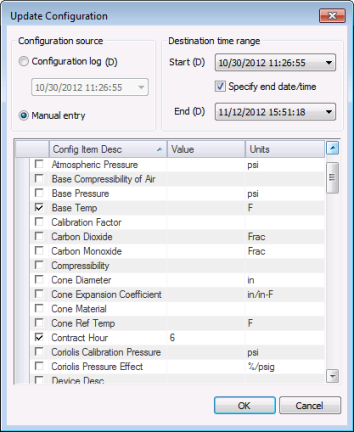
- In the Configuration source box, select the source to use for updating the configuration item values.
- Click Configuration log to use a specified configuration log record as the source of your new values, and then select the Date/time, in Contract time (C), from which to read the new values.
- Click Manual entry to manually enter each new value to use as the source of your configuration item updates.
- In the Destination time range box, select the start and end date/time to describe the time range for which the changed configuration values will apply.
- Select a Start date/time, in Contract time (C), to begin using the new configuration values.
- The end date will be indefinite (not selected), by default. Optionally click the Specify end date/time check box to select/clear the option to specify an end date in order to specify a date/time range. If enabled, select an End date/time, in Contract time (C), to stop using the new configuration values.
- In the list of configuration items, make edits according to your configuration source. Do not save changes until you are done making all desired edits.
- If your selected configuration source is Configuration log values from a specific date/time, the value and units columns will not be editable, since those values are provided by the specified source record. Configuration items not applicable for the device type will display null values.
- If your selected configuration source is Manual entry, for each configuration item you want to include in the update action, type the new value into the Value cell and then select the appropriate units. You do not need to select the check box first. Once you type each new value into the cell, and either press Enter or proceed to another cell, the check box for the corresponding configuration item will automatically be selected. Alternatively, you can click the check box next to each configuration item to select/clear whether to include/exclude it, and then supply the new value and units for each selected item. Optionally right-click on the grid to access the context menu to Select all, Clear all, or Select all gas quality configuration items at once.
- Once values have been edited for all desired configuration records, Save the changes as described below.
Device-Specific Property Pages
See one of the following topics for information about the data items contained in the property pages corresponding to your specific device type.
See FMS Configuration Items for more information about specific configuration data items on these pages.
Saving Changes
When you Save changed records in the Configuration control, you access the Save Changes dialog box to generate a record of the change.
Multiple edits can be performed at one time, and will generate a single command log and audit history record when you save the edits with a single Save action. When saving edits to multiple records, either all edits will be saved successfully or, if there are errors, no edits will be saved. When you make edits that affect the calculation of historical records, you will be asked what recalculation behavior to apply for the change.
To Save Changes
- Create or Edit the desired values.
- Once values have been entered or changed for all desired records, click Save to write the new values and historize the changes. The Save Changes dialog box will appear.
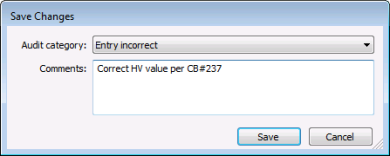
- Select an Audit category from the drop-down menu, for auditing purposes. The Audit Category selections are listed as configured on the Administrative Options page, for the category type Data Change. See Configuring Audit Categories for more information about audit categories. See Auditing in CygNet Measurement for more information about the auditing process.
- Optionally, type Comments into the text box to explain the change. Maximum character count is 140. Although comments are optional, the comment becomes part of the audit record and can be helpful to identify the context for the change when auditing or reviewing records later.
- Click Save to save the record change(s), or click Cancel to abandon the change(s). If the record change does not affect the calculation of historical records, the Save action is complete.
- If the record change could affect the calculation of historical records, the Select Recalculation Process dialog box will appear.
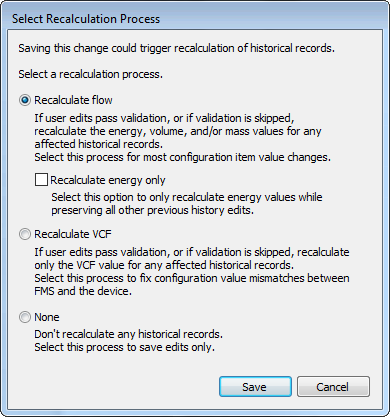
- Click a radio button to select the appropriate recalculation process from the following options.
- Recalculate flow - Select this process for most configuration item value changes. If user edits to configuration values pass validation, or if validation is skipped, this process will recalculate the energy, volume, and/or mass values, for any historical records affected by the current edits.
- Recalculate energy only - Select this option to only recalculate energy values while preserving previous history edits. This process will not recalculate mass or volume values.
- Recalculate VCF - Select this process to fix configuration value mismatches between FMS and the device. If user edits to configuration values pass validation, or if validation is skipped, this process will recalculate only the VCF value, for any historical records affected by the current edits.
- None - Select this process to save your edits only. This process will not recalculate any historical records.
- Click Save to save the record change(s) and apply the recalculation process selected, or click Cancel to abandon the change(s).
More:
 Cone Configuration Properties
Coriolis Configuration Properties
Orifice Configuration Properties
Turbine Configuration Properties
Ultrasonic Configuration Properties


